How to
Updated:
Before You Begin
Make sure you have the following ready before starting:
An active subscription at www.deepcharts.com
Your registered email address and license key (found in your Deepcharts Dashboard)
A stable internet connection
Administrator access on your Windows PC

Part 1 – Downloading DeepDom
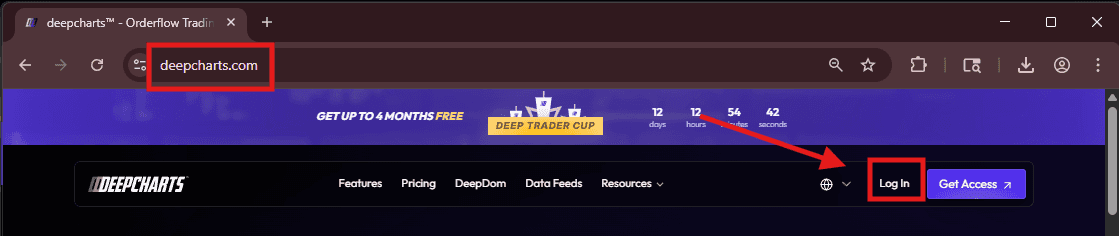
Step 1 – Log in to Your Personal Area Go to wwwdeepcharts.com and sign in with your registered email and password. Once inside, navigate to the downloads section.
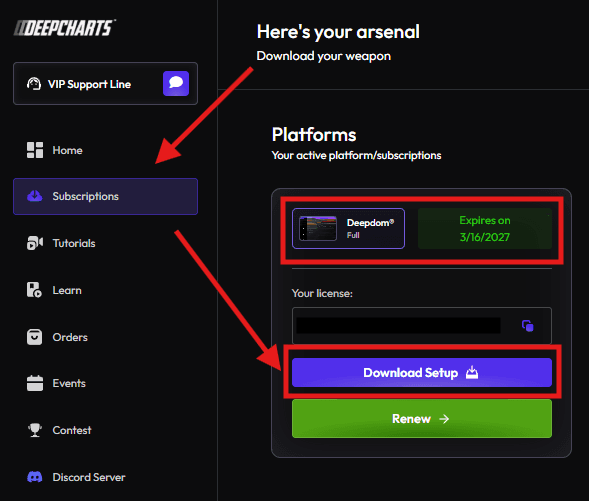
Step 2 – Download the Installer
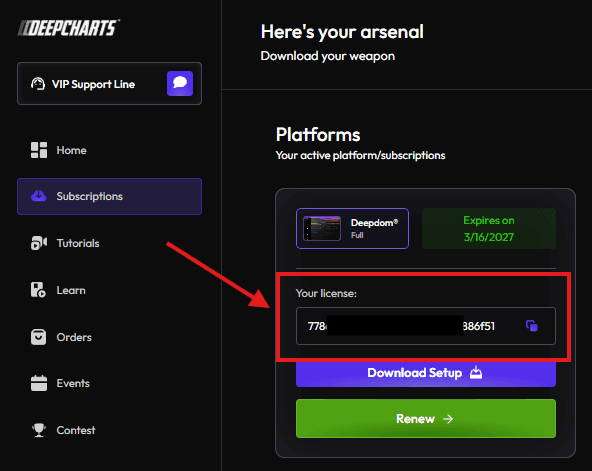
Once inside, navigate to the Subscription section and then download the DeepDom Installer.
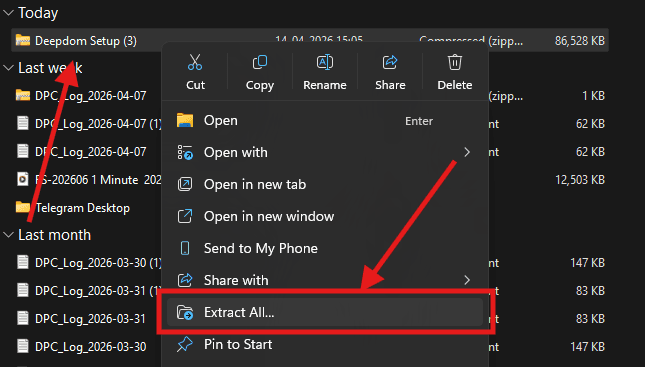
Step 3 – Extract the ZIP File
Locate and download the file named DeepDominstaller.zip. Save it somewhere easy to find, like your Desktop or Downloads folder.
Right-click on DeepDominstaller.zip and select "Extract All." This unpacks the files needed for installation. Do not run the installer directly from inside the ZIP — always extract first.
Part 2 – Installing DeepDom
Step 4 – Check Minimum System Requirements
Confirm your PC meets the minimum requirements for DeepDom before proceeding. Running it on an unsupported system may cause errors. You can find the requirements listed in your account area at www.deepcharts.com/helpcenter
Step 5 – Run the Installer
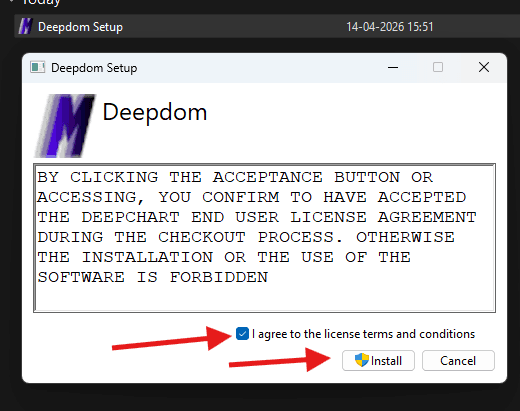
Open the extracted folder and double-click DeepdomSetup.exe. If Windows asks for permission, click Yes to allow it to run.
Step 6 – Complete the Installation
Follow the on-screen instructions:
Read and accept the Terms and Conditions
Click Install and wait for the process to finish
Restart your PC if prompted — this is required to complete the setup
Part 3 - First-Time Configuration
Step 7 – Open DeepDom
After installation, a shortcut will be created on your Desktop. Double-click it to launch DeepDom for the first time.
Step 8 – Enter Your License Details
On the activation screen, enter the following exactly as shown in your account:
Email Address — the email you registered with at www.deepcharts.com
License Key — the alphanumeric code found in your Personal Area
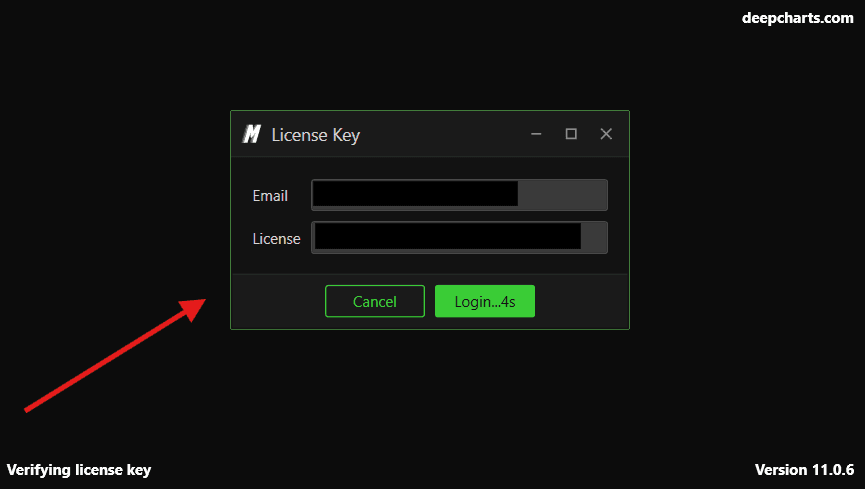
Tip: Copy and paste the license key directly from the website to avoid typos.
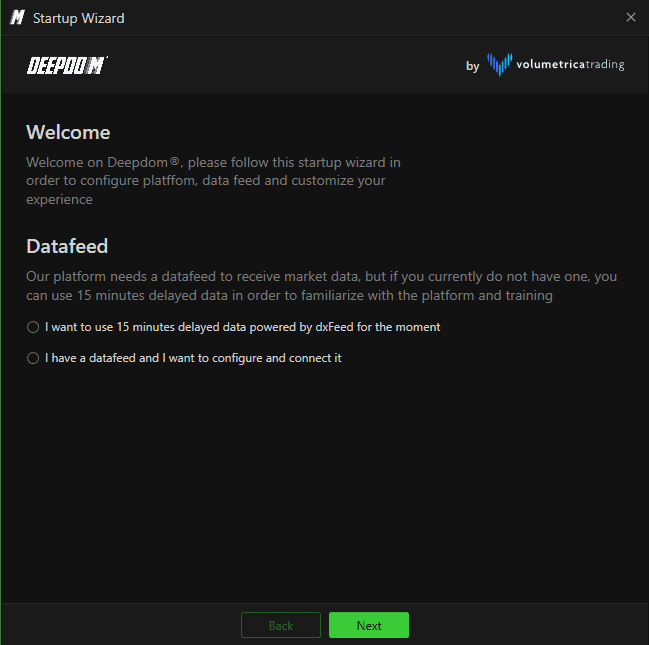
Step 9 – Create Your First Data Connection
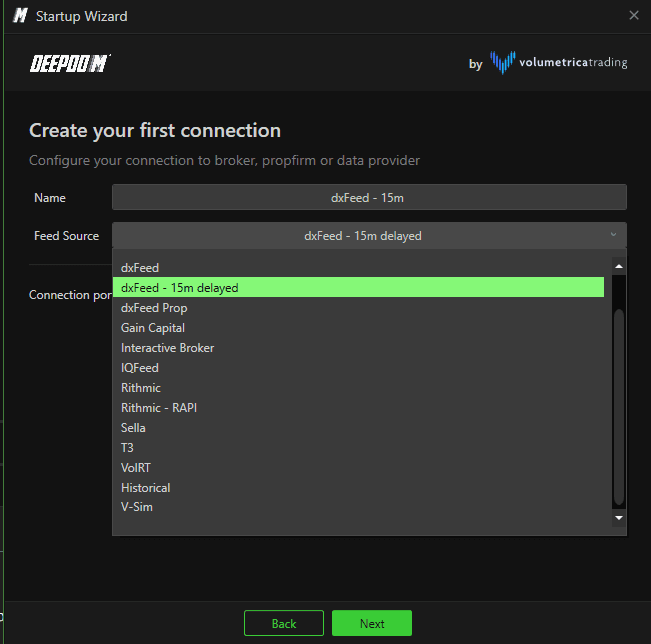
If you want to use the 15‑minute delayed data feed, you can select it. Otherwise, you can add your own data feed here.
Enter your Market Depth / Level 2 data feed, provided by your broker or data vendor
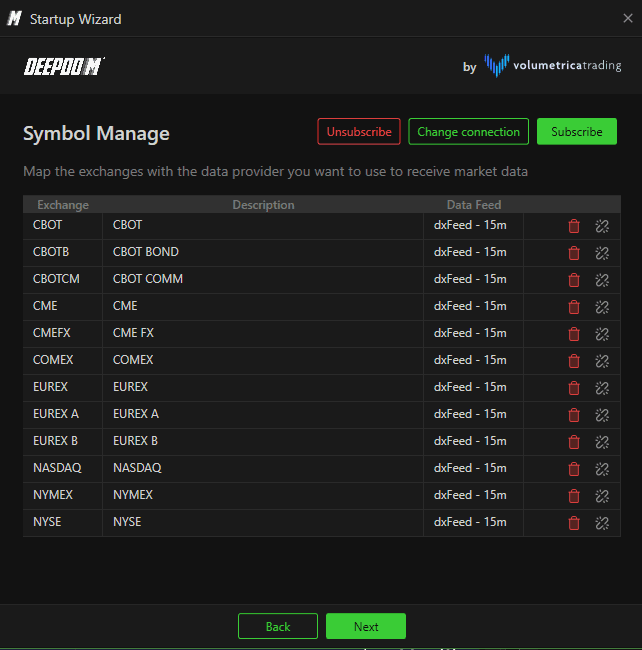
Step 10 – Symbol Manage
From Symbol Manager, you can map the data feed provider to your connection in order to receive market data.
Select the markets you want to associate with this connection from the list shown
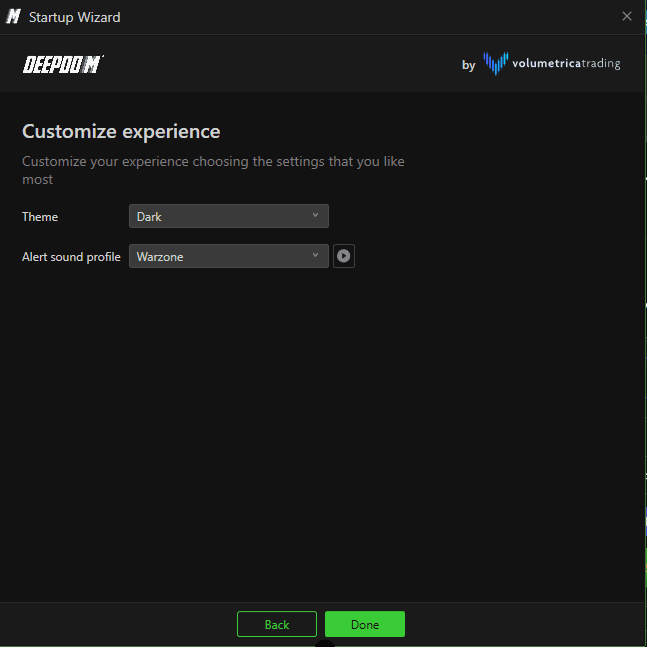
Step 11 – Choose Your Theme
Select a visual theme for the platform. This sets the color scheme of the interface. You can always change this later in Settings.
Step 12 – Connecting Feed : This connects DeepDom to your live market data feed:
Click Connect
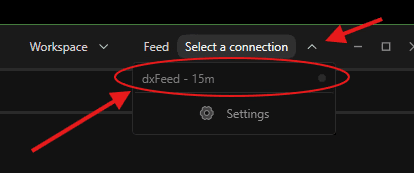
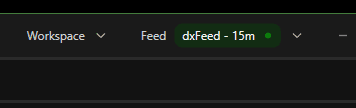
Wait until the indicator turns green — this means your data feed is live and working
Step 13 – Open Your First Heatmap
You're all set. To open your first Heatmap:
Go to New
Select an Instrument from the list
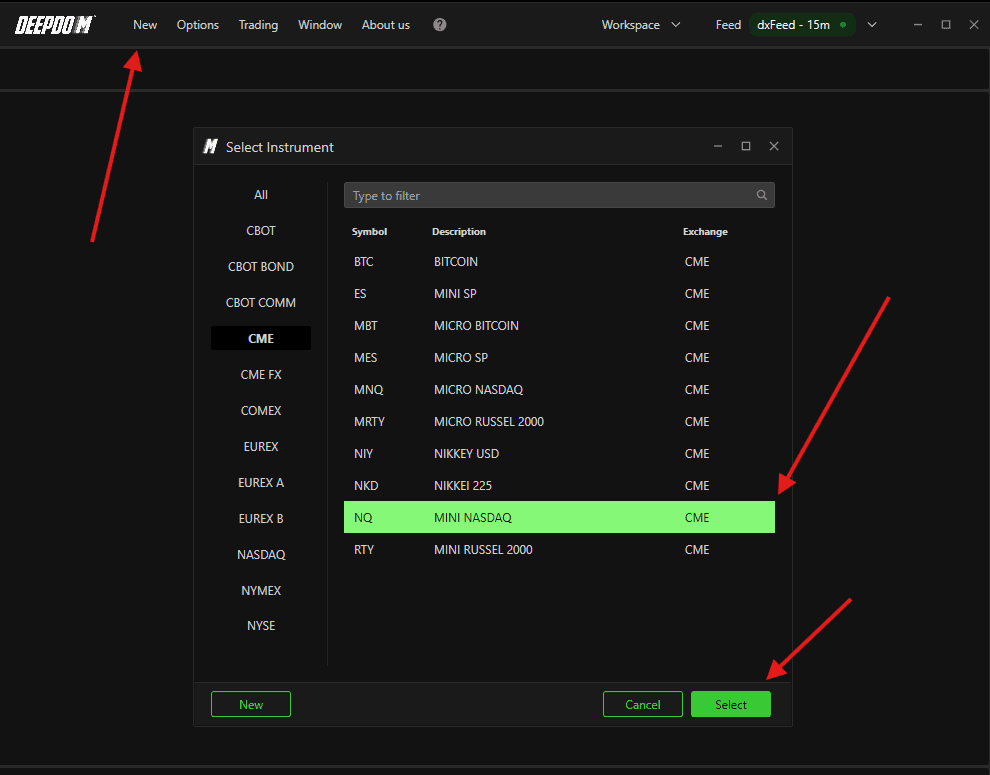
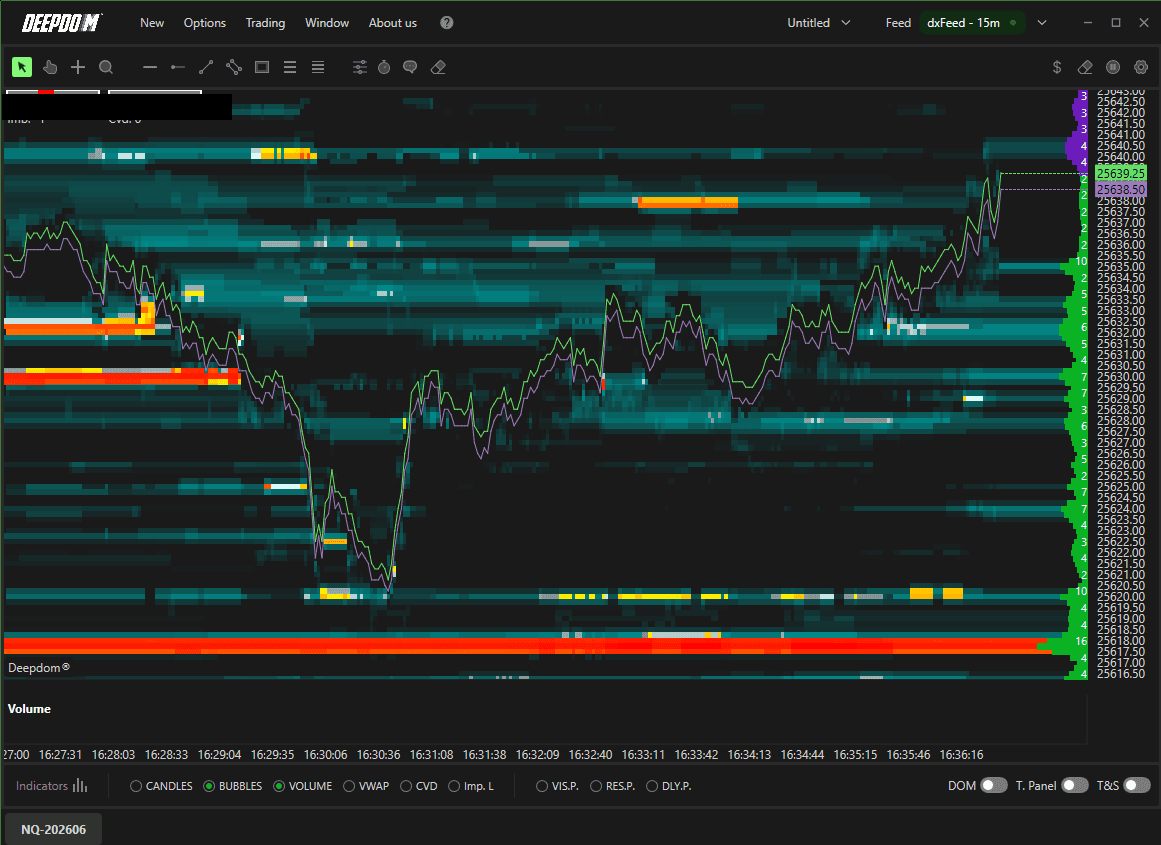
Your Heatmap will open and begin displaying live data
Conclusion
You have successfully installed and configured DeepDom. Here's a quick recap of what you completed:
Downloaded and extracted DeepDomSetup.zip from your Deepcharts Dashboard
Activated the platform using your email (Deepcharts Registered) and license key
Connected your Level 2 data feed and selected your markets
Opened your first Heatmap and started receiving live data
You're now ready to explore the platform. Check the other Knowledge Base articles for tips on getting the most out of DeepDom.
Still Having Trouble?
Our support team is available 24/7 and ready to help you with any issue you encounter. When you reach out, please include:
A screenshot of the issue.
A brief description of what you were trying to do.
Support Ticket (fastest response): visit www.deepcharts.com and create a support ticket directly on our website.
Email Support: you can also reach us at support@deepcharts.com. Please note that email responses may take a little longer than a support ticket.
