Trading
Updated:
Enable Trading and Show the Trading Panel
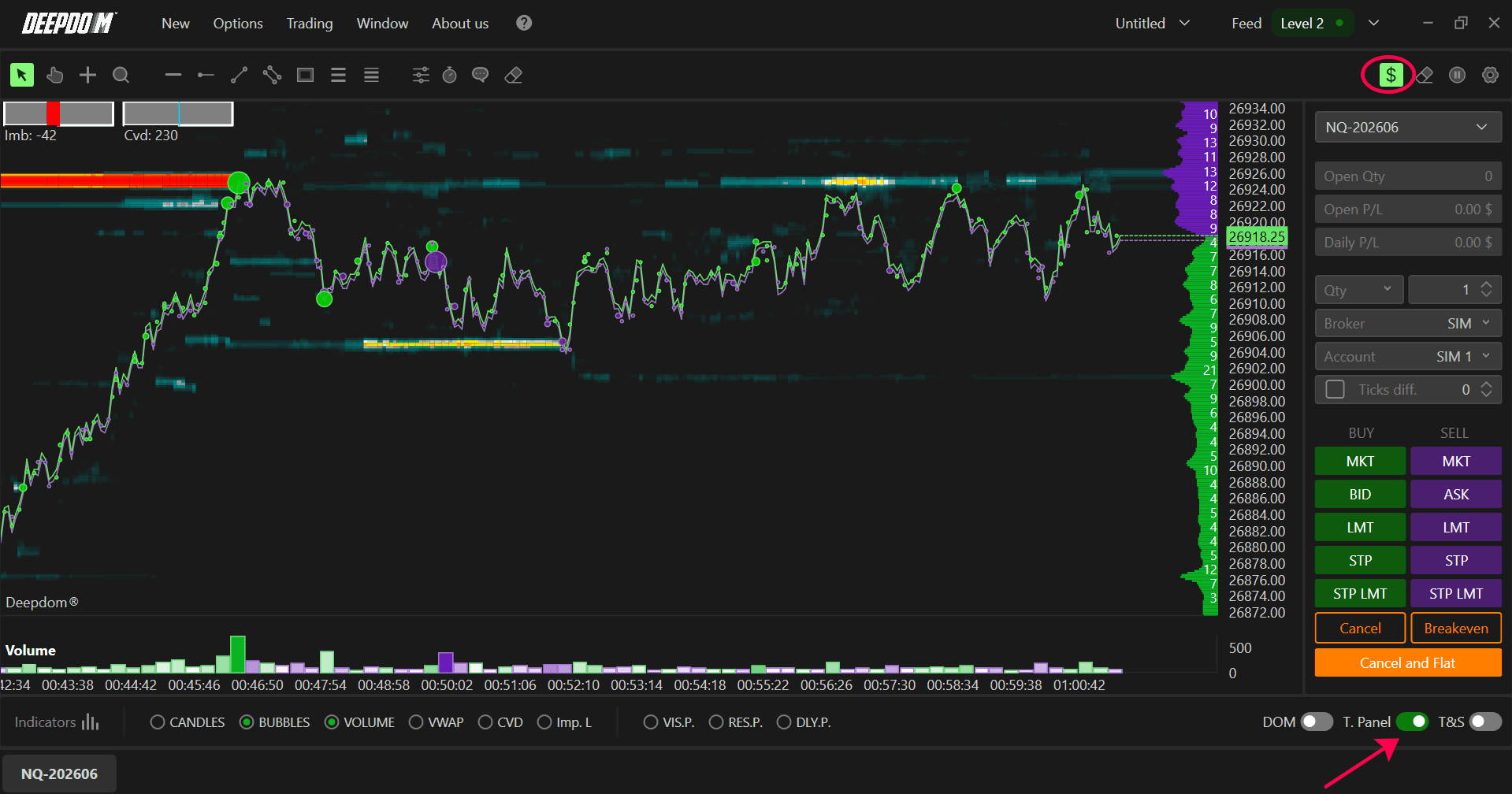
Enable trading on a chart
To allow order entry from a chart:
Click the dollar icon in the upper‑right corner of the chart, or
Open the chart Settings menu and enable Trading enabled.
Show the trading panel
To display the trading panel below the chart:
Enable the Trading panel checkbox in the lower‑right corner of the chart, or
Use the chart Settings menu and enable Show trading panel.

Trading Panel and Cross Trading Mini/Micro
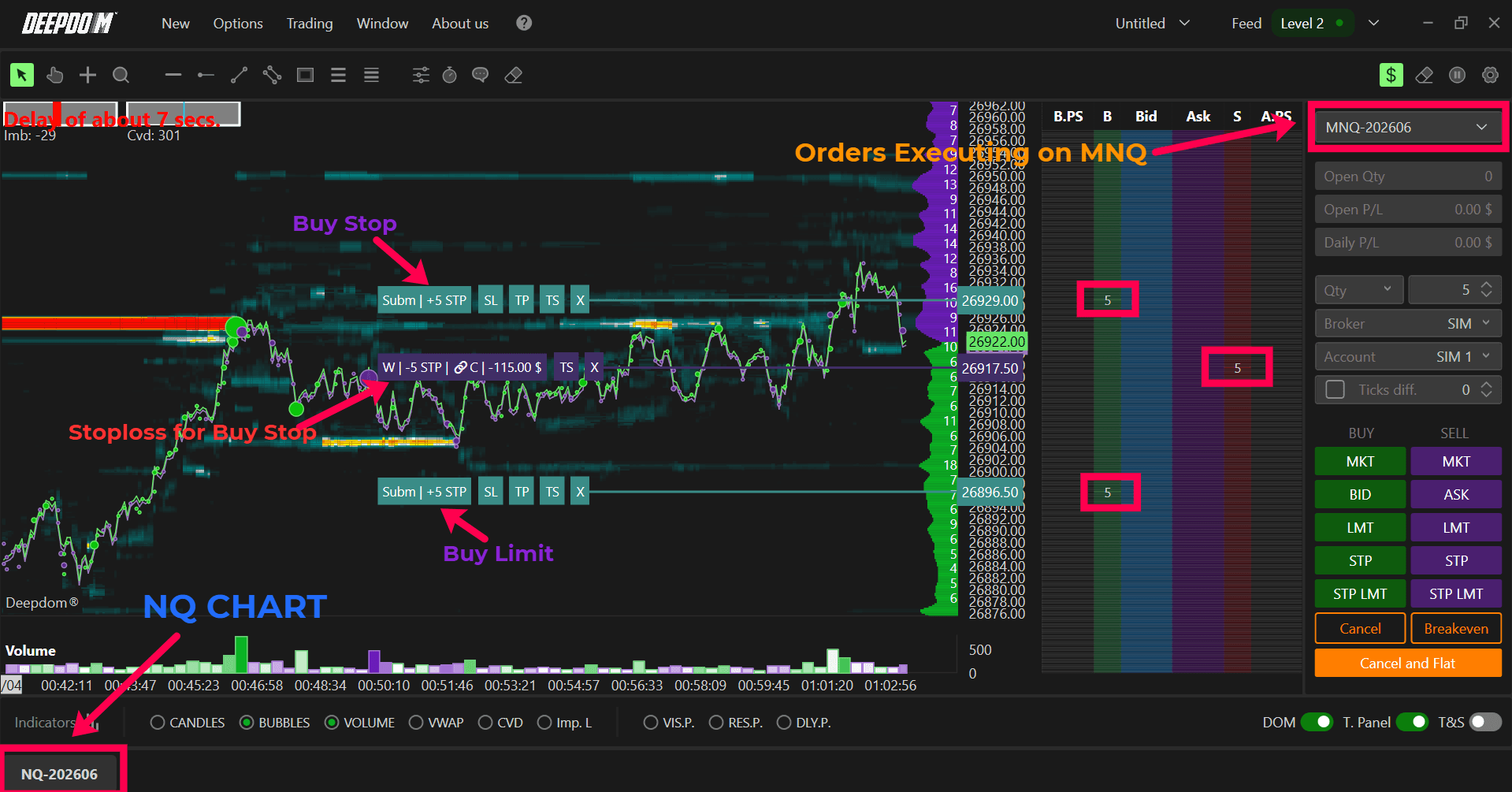
At the top of the trading panel you can select the instrument used for order execution. DeepDom allows cross trading, for example viewing data from a Mini futures contract while executing orders on a Micro contract, without opening additional charts. For accurate volumetric analysis, always base your decisions on the main futures contract.
The panel also shows:
Open quantity – number of contracts or shares currently in the market.
Open P/L – unrealized profit or loss on the open position.
Daily P/L – profit or loss realized on the instrument for the current trading day.
Trading Buttons and Basic Actions
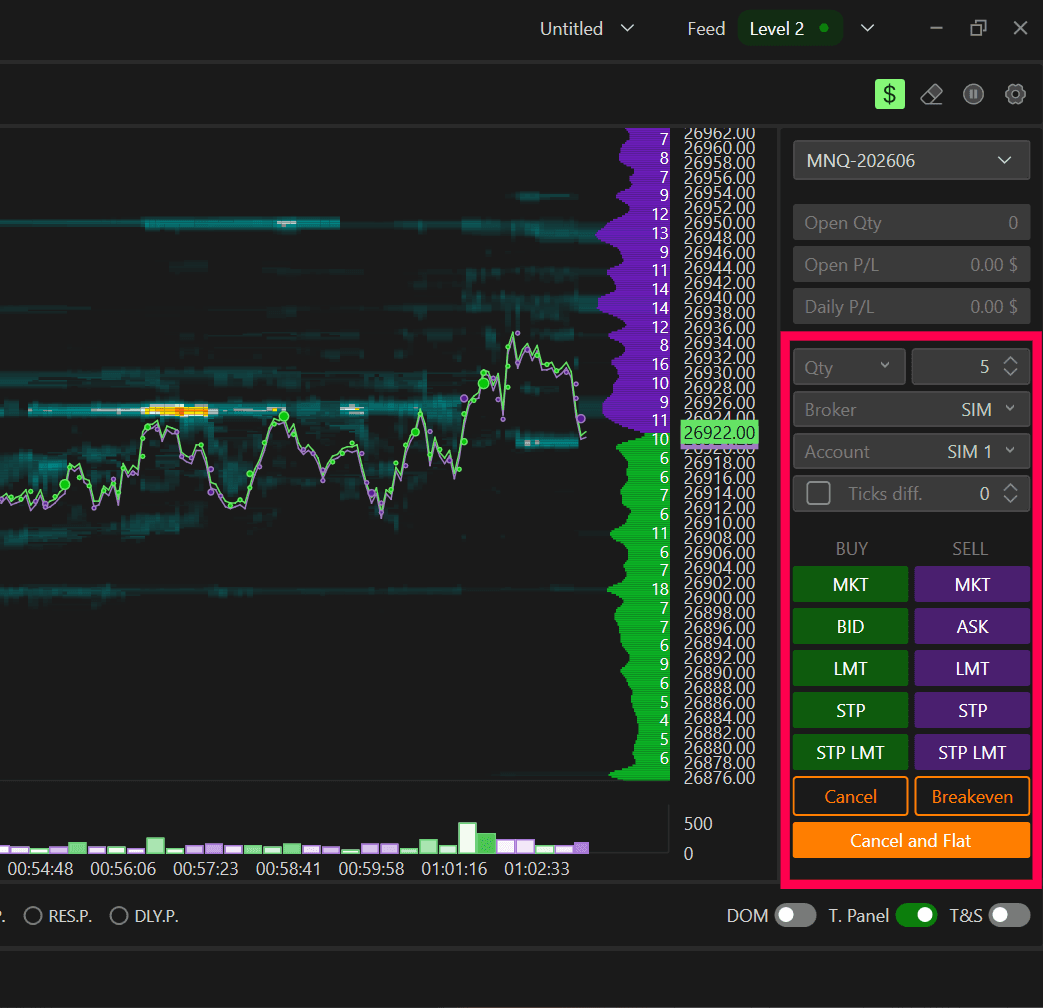
The trading panel includes quick‑access buttons for different order types:
MKT – send buy or sell market orders.
BID / ASK – place limit orders at the current best Bid or best Ask.
LMT – place manual limit orders (buy limit below market price or sell limit above market).
STP – place stop orders that become market orders when triggered (buy stop above market, sell stop below market).
STP LMT – place stop‑limit orders, which send limit orders instead of market orders when triggered, helping to control slippage at the risk of missing execution.
Cancel – cancel all working (pending) orders.
Close – close the current open position and cancel all remaining working orders.
Use the Qty, Broker, and Account fields to choose the trade size, broker, and account for each operation.
If the Tick diff. option is enabled, Bid and Ask buttons will place limit orders a specified number of ticks away from the market price instead of exactly at the best Bid/Ask.
OCO Strategy and Historical Fills
OCO Strategy
The OCO (Order‑Cancels‑Order) feature lets you attach two exit orders to a primary position: a profit‑taking limit order and a protective stop. When one of these exit orders is executed, the other is automatically cancelled.
Show historical executions
To display historical fills on the chart, open the chart settings and enable Show historical executions. Trade markers will then appear at the corresponding prices and times.
Chart DOM Overview
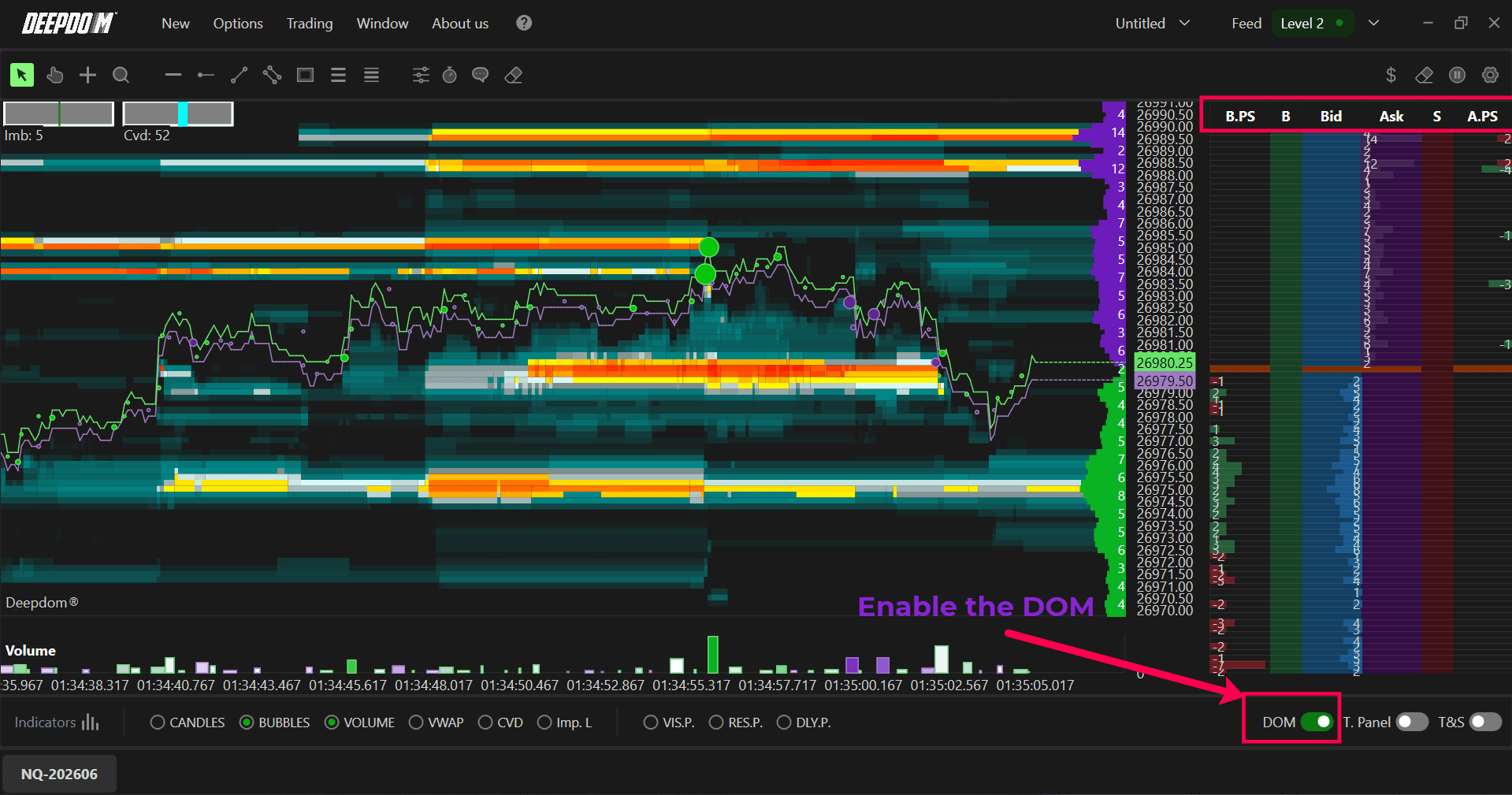
The Chart DOM provides a vertical order book ladder next to your chart.
Enable it by selecting the DOM checkbox at the bottom‑right of the chart, or
Open chart settings and enable Enable chart DOM.
By default, the Chart DOM shows these columns from left to right:
B.PS – Bid Pull Stack; quantities added or removed at each Bid level.
B – order‑management column for buy orders (move or cancel).
Bid – buy‑limit orders at each price level.
Ask – sell‑limit orders at each price level.
S – order‑management column for sell orders.
A.PS – Ask Pull Stack; quantities added or removed at each Ask level.
Order Entry and Management on the DOM
Market and limit/stop orders
Buy Market – right‑click anywhere in the Bid column.
Sell Market – right‑click anywhere in the Ask column.
Buy Limit – left‑click in the Bid column at any price below the current market price.
Buy Stop – left‑click in the Bid column at any price above the current market price.
Sell Limit – left‑click in the Ask column at any price above the current market price.
Sell Stop – left‑click in the Ask column at any price below the current market price.
Modify and cancel orders
For existing limit or conditional orders:
Use the order‑management columns (B and S) and drag with the left mouse button to move an order to a new price level.
Right‑click to cancel an order.
Double‑click with the left mouse button to edit the order quantity.
Chart DOM Settings and Columns
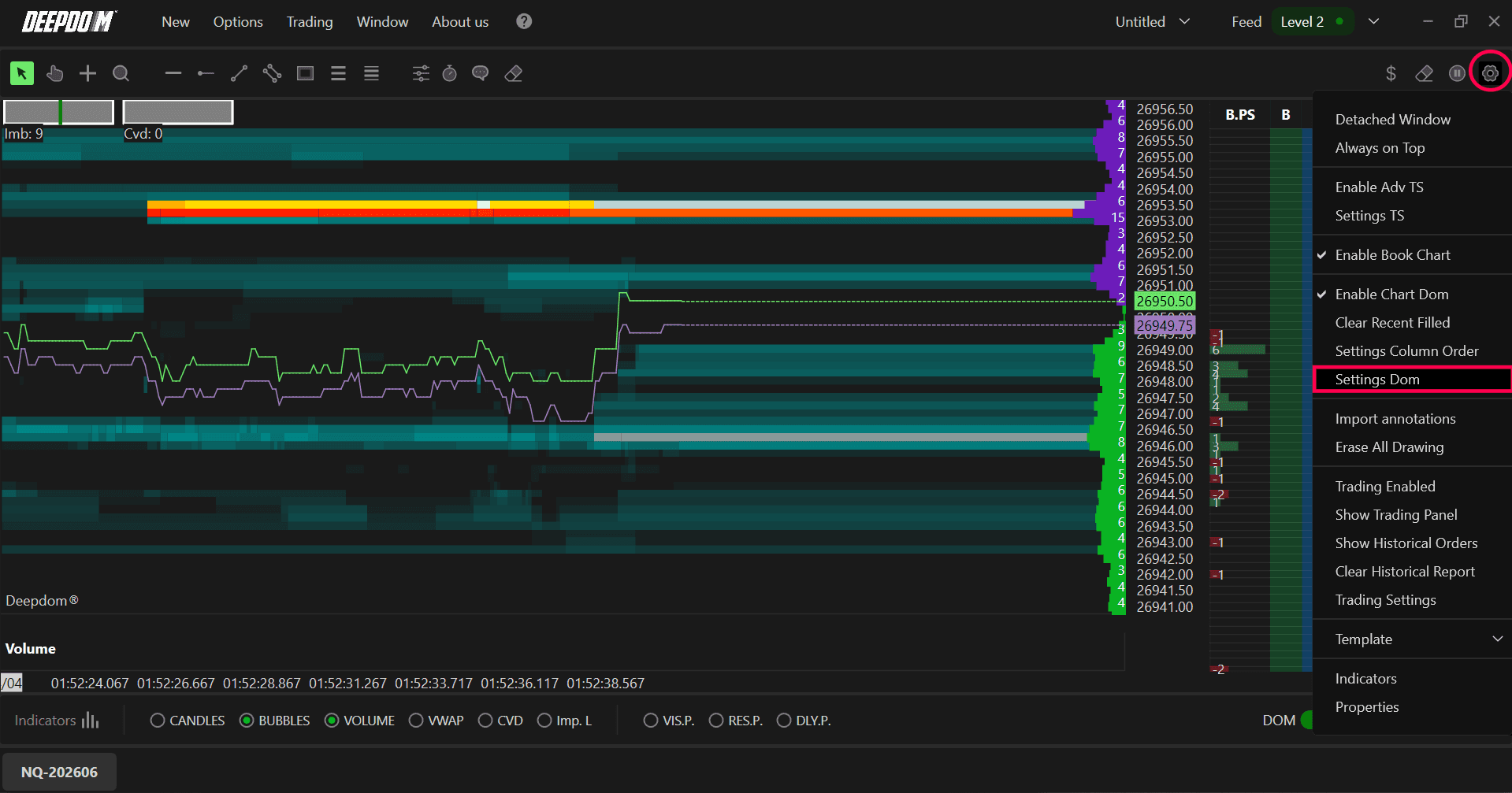
Click the Settings icon on the Chart DOM to open DOM settings. Here you can adjust Font size, Text format and the appearance of various columns, including:
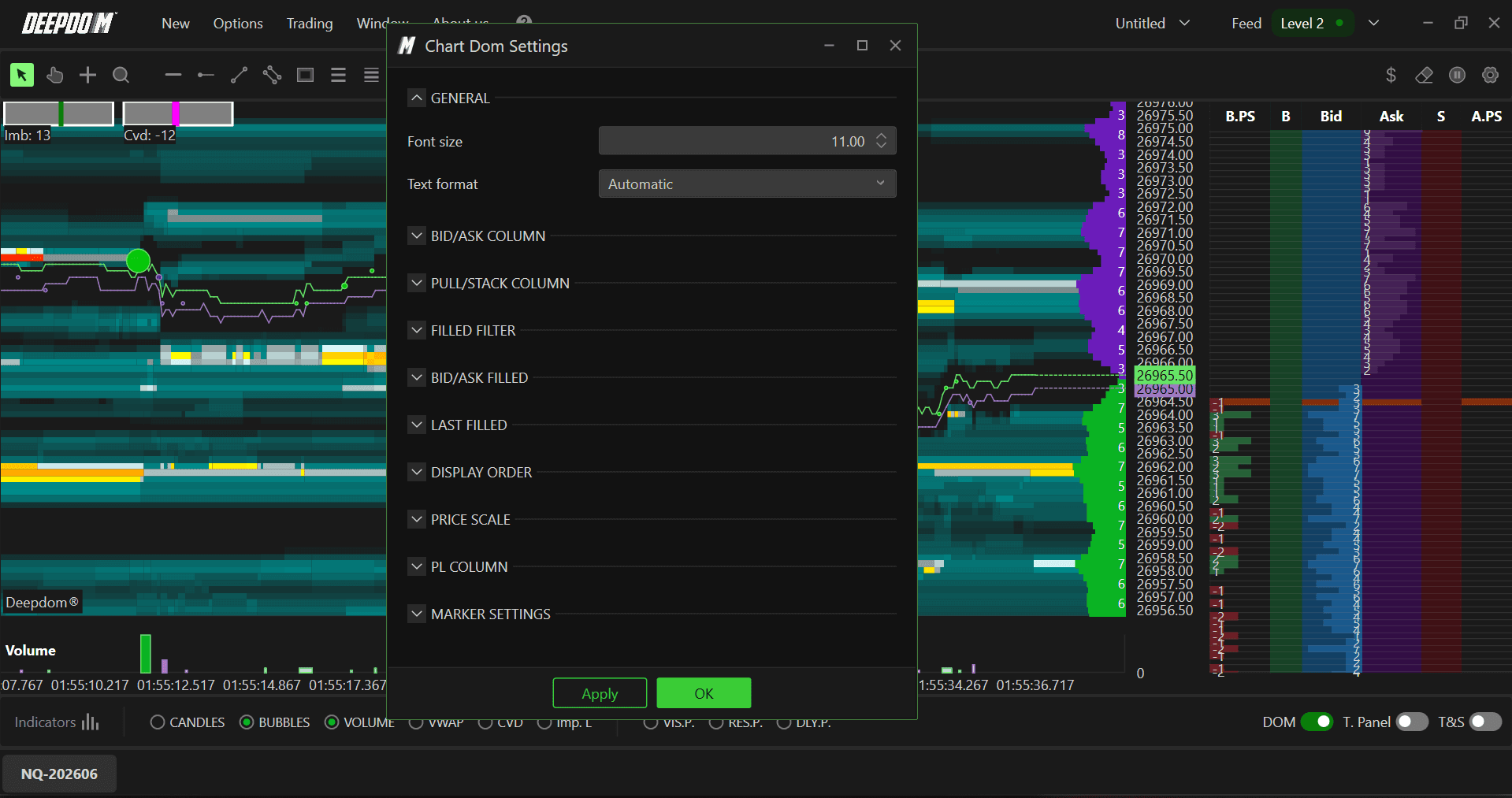
Bid/Ask Columns – change background and text colors for Bid and Ask.
Pull Stack Columns – enable Bid/Ask Pull Stack, choose filters (average or none), and customize colors.
Filled filter – apply a filter to executed quantities so only significant trades are shown.
Bid/Ask Filled – show executed volumes in B.T (Bid Trades) and A.T (Ask Trades) columns, effectively forming a footprint view. Auto‑reset can clear these based on price swings, or you can reset manually.
Last Filled – enable the last‑trade column.
Order View – show/hide order‑management columns and adjust their colors.
Price Scale – enable the price ladder column and customize its appearance.
P/L Column – display tick‑by‑tick unrealized profit and loss when you have an open position.
Markers – enable markers for last traded price, open, high, and low.
Column Order – open the column‑order settings to rearrange the DOM columns as needed.
Still Having Trouble?
Our support team is available 24/7 and ready to help you with any issue you encounter. When you reach out, please include:
A screenshot of the issue.
A brief description of what you were trying to do.
Support Ticket (fastest response): visit www.deepcharts.com and create a support ticket directly on our website.
Email Support: you can also reach us at support@deepcharts.com. Please note that email responses may take a little longer than a support ticket.
