Common Issues
Updated:
Step 1 – Check Your Subscription Status
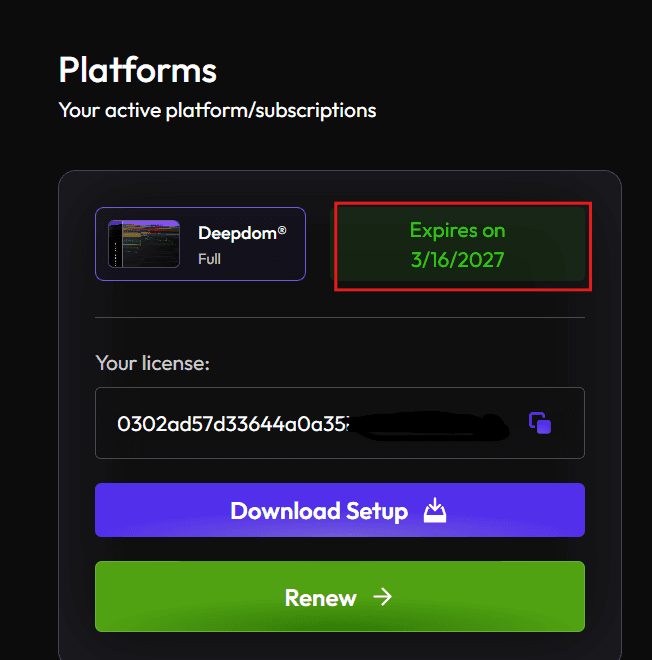
Confirm that your DeepDom subscription is active in the DeepDom website customer portal. Expired or cancelled subscriptions will prevent new license activations even if you still have the old license email.

Step 2 – Make Sure Only One Session Is Active
DeepDom licenses typically allow only one active session per license. If the platform is already open on another computer, or if a previous session did not close correctly, the new login may be rejected.
Close DeepDom on all other machines, wait a few minutes for the session to expire, and then try again. If necessary, restart Windows to ensure no background DeepDom processes are still running.
Step 3 – Verify Email and License Code
Carefully copy and paste the email address and license code from your welcome message into the activation form. Avoid typing them manually to prevent mistakes such as extra spaces, swapped characters, or missing digits.
Step 4 – Check the Hosts File Configuration
The Windows hosts file maps domain names to IP addresses before DNS is queried. An incorrect entry in this file can block DeepDom from reaching the license server, even if your Internet connection is otherwise working.
If you or another application has modified the hosts file, review it and remove any lines that redirect the DeepDom / Volumetric Trading license domains to invalid IP addresses. Always follow a trusted guide when editing the hosts file, and create a backup before making changes.
Step 5 – When Problems Persist
If the license still does not activate after completing the steps above, contact support with the following information:
Your license code and the email address used for registration.
A screenshot of the exact error message.
Your Windows version and whether you recently changed hardware or reinstalled the operating system.
Providing these details will help the support team quickly reset or correct your license if needed.
Still Having Trouble?
Our support team is available 24/7 and ready to help you with any issue you encounter. When you reach out, please include:
A screenshot of the issue.
A brief description of what you were trying to do.
Support Ticket (fastest response): visit www.deepcharts.com and create a support ticket directly on our website.
Email Support: you can also reach us at support@deepcharts.com. Please note that email responses may take a little longer than a support ticket.
