How to
Updated:
Step 1 – Enable Notifications
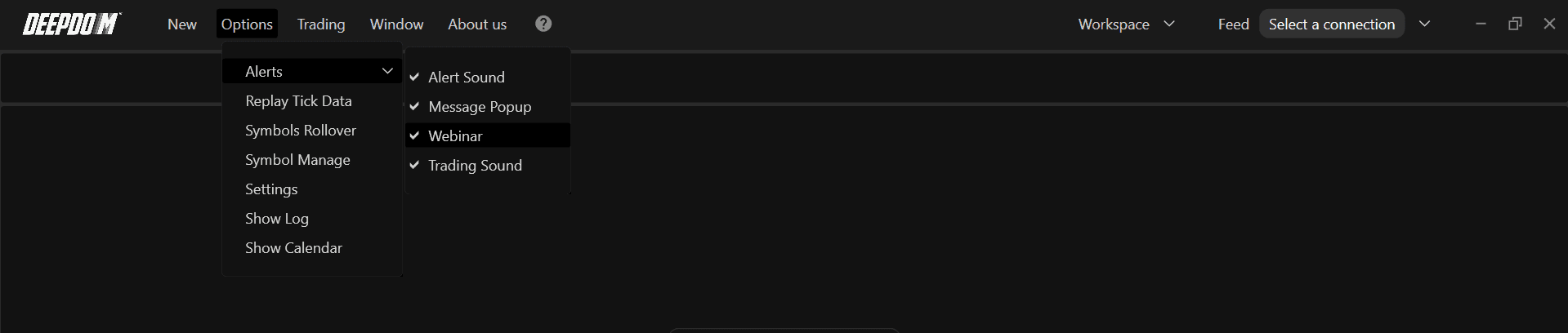
From the main menu bar in DeepDom:
Open Options.
Click Alerts.
Ensure that items related to Alert sound, Message Pop‑ups, Webinars, and Trading sound notifications are enabled.
This activates the global notification system so that sound alerts configured later will be allowed to play.
Step 2 – Add Sound Notification Profiles
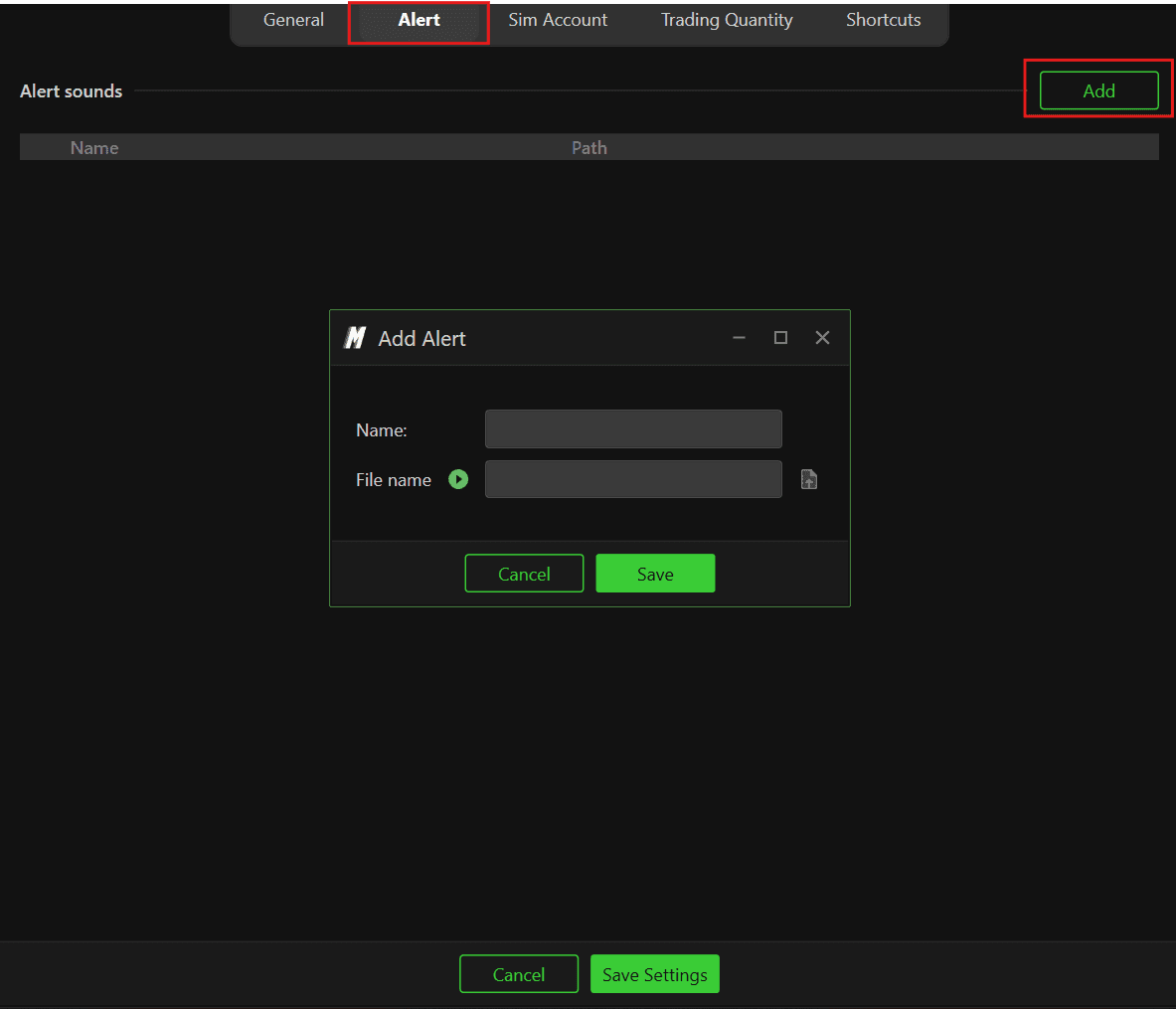
You can create reusable sound profiles, each with its own name and audio file.
Open Options from the DeepDom menu bar.
Go to Settings and move to the Alerts column.
Click Add to create a new sound notification.
Assign a descriptive Name (for example, Resistance).
Click the file icon to upload a sound file.
DeepCharts provides a set of default alert sounds in a folder similar to Documents\Deepdom\Alert Sound. You can also use your own custom audio files.
Select the desired sound file.
Click Open to load it and use the green play button to preview the sound.
Click Save to confirm the new sound notification.
Repeat the process to add additional sounds, then click Save Settings to store all changes.
Restart DeepDom to ensure all newly added sound notifications are loaded correctly.
Step 3 – Associate Sounds with Annotations
Once notifications are defined, you can link them to drawing tools so a sound plays when price interacts with those annotations.
Open a chart and add the desired annotation (for example, a horizontal line at a resistance level).
Select the annotation and right‑click it.
Enable Sound Alerts.
Click Notification Settings.
Choose one of your saved sound notifications from the list (for example, Resistance).
Optionally, add a custom text message that will be shown together with the sound alert.
Step 4 – Associate Sounds with Indicators
You can also attach sound notifications directly to indicator signals.
Open the Indicator Parameters dialog (from the Indicators panel or by right‑clicking the indicator on the chart).
Locate the Sound Notification section.
Enable Sound Notifications.
Select a notification from the list of defined sounds.
After these steps, whenever the indicator triggers its alert condition, DeepDom will play the associated sound and, if configured, display the warning message.

Still Having Trouble?
Our support team is available 24/7 and ready to help you with any issue you encounter. When you reach out, please include:
A screenshot of the issue.
A brief description of what you were trying to do.
Support Ticket (fastest response): visit www.deepcharts.com and create a support ticket directly on our website.
Email Support: you can also reach us at support@deepcharts.com. Please note that email responses may take a little longer than a support ticket.
